Create a vintage photo effect in Photoshop

Today I was playing with Photoshop looking for some interesting photo effect and I found a quick and easy way to convert a modern photo in a vintage one.

I have already created an action to simulate this effect in Vintage colors effect action for Photoshop, but I am sure you’ll like this effec too.

Follow me through this very easy tutorial and you’ll find by yourself how easy is to achieve this effect.

1) Open your photo
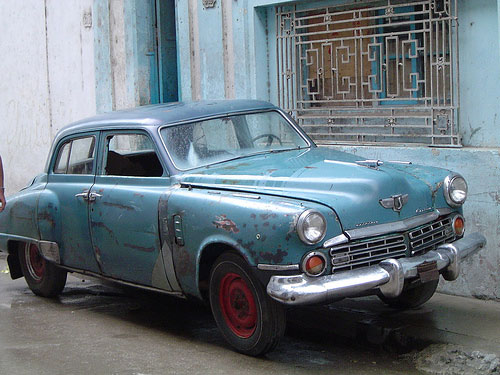
Photoshop Vintage effect

2) Set your foreground and background colors respectively to #ff0000 and #00ff00
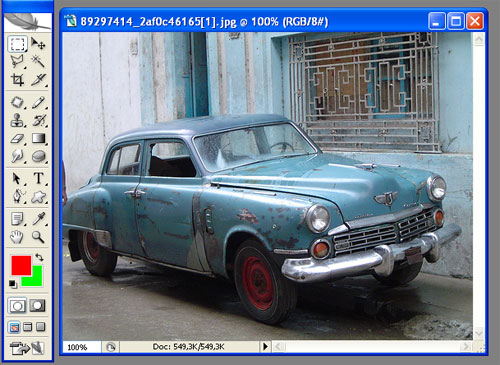
Photoshop Vintage effect

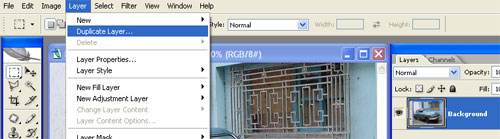
3) Duplicate the photo layer

Photoshop Vintage effect

4) With the newly created layer use a Gradient Map
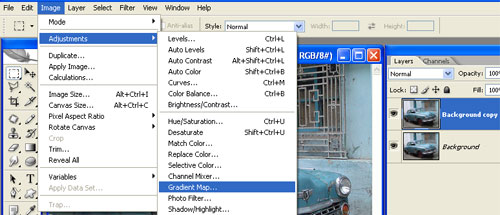
Photoshop Vintage effect

5) On the same layer, use Blending Options
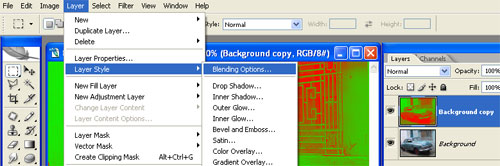
Photoshop Vintage effect

6) Select Blend Mode to Color and Opacity to 50%
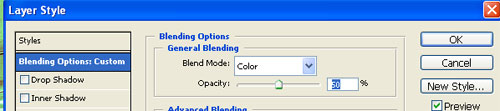
Photoshop Vintage effect

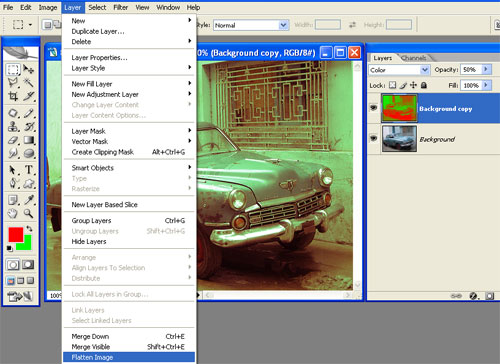
7) Flatten the image

Photoshop Vintage effect

8) Apply an Add Noise filter to the only layer you should have
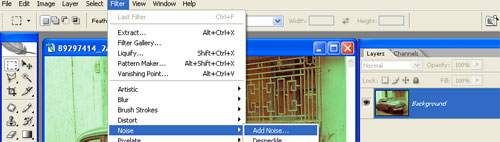
Photoshop Vintage effect

9) Set the filter with 2% Gaussian Monochromatic values
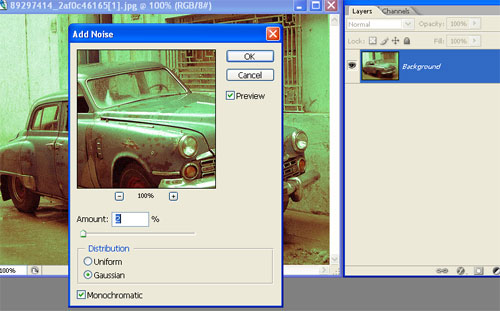
Photoshop Vintage effect

10) Enjoy the result

Photoshop Vintage effect

You may need to play with the last two steps values in order to fit the effect to your needs.

And for the laziest of you, I made an action that does the task automatically! Download the action.

If you liked this post buy me a beer (or two)

» Take a look at Photoshop Templates offered by Template Monster. They can be definitely useful if you want to start your own website.
These templates can be easily edited so you are able to customize them to serve you particular needs.

10 Comment(s)

  1. s0d4player | Oct 18, 2007 | Reply

    A simple but a nice looking effect.

  2. jon | Oct 18, 2007 | Reply

    The tutorial is great.Could you please indicate which gradient should be use for grayscale mapping.

  3. AAR | Oct 26, 2007 | Reply

    Exelente!

  4. ettey | Oct 31, 2007 | Reply

    great tutorial! thanks for the action! :D

  5. segunda s. palakpak | Nov 16, 2007 | Reply

    great! thanx for the tutorial!

    nwayz, i played around with it using the following colors:

    foreground color: FF00EA (pink)
    background color: CAE200 (lime green)

    it produced nice results still.. ;)
    thanx for the ps action..hehe

  6. Sandra | Nov 18, 2007 | Reply

    I love it!! thats wut i was looking for!!

  7. yu | Dec 8, 2007 | Reply

    help… i downloaded the action but i don’t know where to find it?? where can i find it?? help….

  8. paulette | Dec 11, 2007 | Reply

    i dont really think that looks like its a vintage photo it looks just like a green contrast we were born for this!!!!!

  9. paulette | Dec 11, 2007 | Reply

    this person is absoulutley right i hated that part mi picture loooks kind of bad i want mi picture to look more vintagey i gotta get thruu this.

  10. segunda s. palakpak | Mar 7, 2008 | Reply

    i really like this tutorial..real nice..what’s even more interesting is the different kinds of results you get when you play around with all sorts of colors and blending modes..

    but i guess, the picture you have (the car) is really well suited for this effect..maybe that’s why other people were complaining why they didn’t have the same results that you showed here.. ;)

2 Trackback(s)

  1. Apr 2, 2008: 100 wonderful photo effects Photoshop tutorials
  2. Apr 4, 2008: টেকটিইউনস » 100 টি দারুন ফটোশপ ফটো ইফেক্ট টিউটোরিয়াল » টিউটোরিয়াল, ফটো ইফেক্ট, ফটোশপ

Post a Comment