Creation of a Flash arcade site using WordPress – step 3
This is the hardest part of the tutorial.
If you survive to this one, you portal is almost done.
Before starting, I made some changes to the way of inserting posts described in part 2.
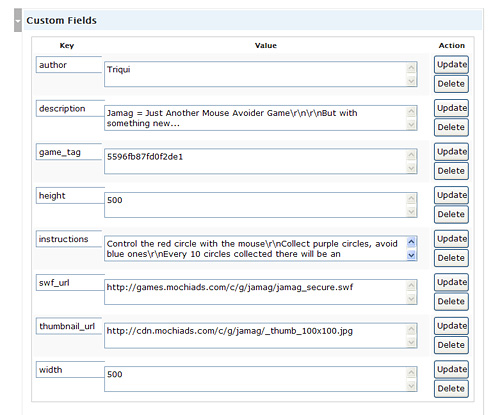
I completely removed the post content and saved description and instructions as custom fiedls, like in this picture:
Now, you have to know WP stores your post and post information in a collection of tables.
When you click on “Publish” to update your blog, new entries are generated for your post.
If you want to auto-feed a WP blog, you must do the same operations WP does when you click on “Publish”.
So you have to know most of WP tables and their fields.
Every table has a prefix, usually wp_, that is saved in your wp-config.php file in this line:
$table_prefix = 'your_prefix';
So I am going to explain tables calling with their real names, without the prefix.
But, as said, in most cases what I call (as example) postmeta you should find it with wp_postmeta name.
Let’s browse the tables:
postmeta table
In the postmeta WP stores the meta-data (aka custom fields) of every post.
Here it is the table:
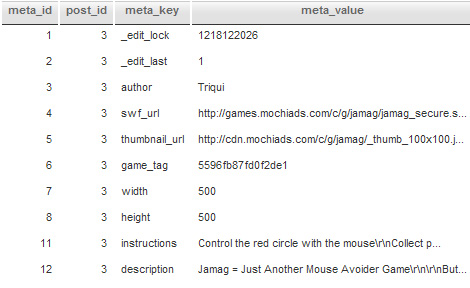
meta_id is the primary key of the table.
A primary key is a unique index where all key columns must be defined as not null (it means they must have a value). If they are not explicitly declared as not null, MySQL declares them so implicitly.
We’ll see later how to make use of it… meanwhile just think about meta_id as an internal, unique id of the table.
post_id is the primary key (the internal, unique id) of the post in which I defined the tag.
The post with post_id = 3 is the one where I listed Jamag. You’ll see later how do I know that Jamag = 3
meta_key is the physical name of the key I assigned in this post Creation of a Flash arcade site using WordPress – step 2.
meta_value is the value of the meta data I assigned as before.
term_taxonomy table
In this table we can find the names and (more important) the ids of terms used in the blog
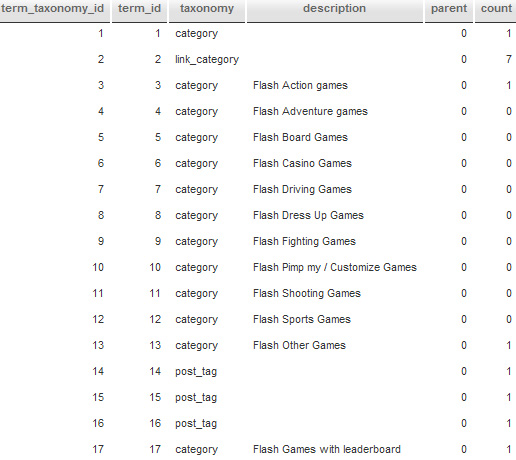
term_taxonomy_id is the unique id of this table
term_id is the id of the term. You’ll see later what does it represent.
taxonomy represents the type of the taxonomy. We are interested in the ones marked as category because they represent the categories of the blog, and post_tag because they are the tags of the blog
description is the blog description of the taxonomy
parent represents the parent of the taxonomy if any (0 = no parents)
count counts the number of posts using that taxonomy. At the moment we have one game listed in Action games and Other games, and that’s why count is equal to 1 in those rows.
terms table
Another table to manage terms
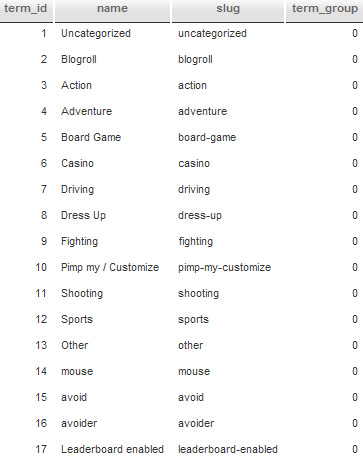
term_id is the unique id
name is the name of the term
slug is the slug of the term
term_group help us to see if terms are group but we will simply ignore it
Now, let’s make a real world example: term_id 3 in terms table refers to something called Action with action slug… and looking for a 3 in the term_id column of the term_taxonomy table we know that “something” is a category with one post and described as Flash Action games.
terms_relationships table
This is the core table, the one that links every table to another
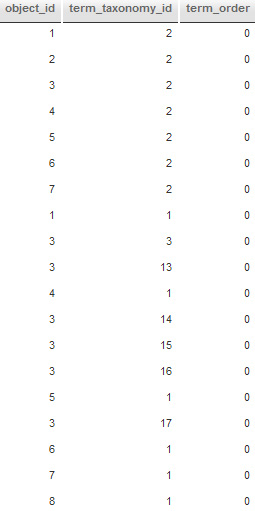
object_id is the unique id of the object we are considering. As example, a post is an object.
term_taxonomy_id is the term_taxonomy_id field in the term_taxonomy table
term_order isn’t of any interest at the moment
What do we know now? Well, since Jamag is object number 3 (you’ll see later why), we know from this table that the object 3 refers to term_taxonomy_ids 2, 3, 13, 14, 15, 16, 17 that mean blogroll (not interesting), Action, Other, mouse, avoid, avoider and Leaderboard enabled… that are the categories and the tags I assigned to Jamag.
posts table
posts stores the post themselves. It’s a very large table so I am going to split it in three parts
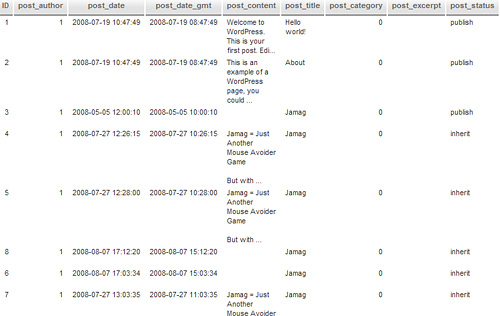
id is the unique id of the post. Now you know Jamag has id = 3
post_author is the author of the post, in this case the admin
post_date and post_date_gmt are both local and GMT timestamps of the post
post_content is the content of the post. Look at id = 3: there is no content because I moved all the content into the meta data
post_title is the title of the post
post_category is not the category of the post, so don’t care about it
post_excerpt is the excerpt of the post, but no content = no excerpt
post_status represents the status of the post. Only the ones with publish status are visible, I could remove all other ones.
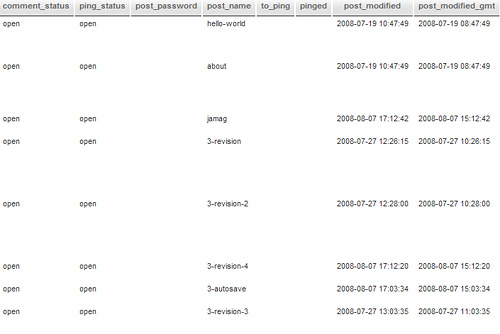
comment_status when set to open means users can comment the post
ping_status does the same thing with ping services
post_password should remain blank because we want all posts to be accessible to everybody
post_name is the internal name of the post
to_ping and pinged represent the pings of the post while post_modified and post_modified_gmt are the timestamps of the last modification of the post.
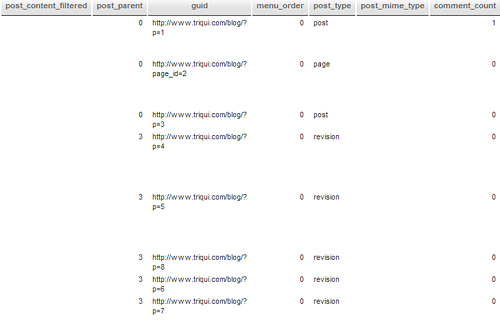
post_content_filtered and post_parent aren’t of any use in our project
guid is the real url of the post. Remember that good sites do not use real urls but act on .htaccess… I suggest you to read How to generate friendly URLs with .htaccess and How to generate friendly URLs with .htaccess – part 2 even if you don’t need to know all these tricks because WP manages everything by itself.
menu_order isn’t of any use in our project
post_type represent a real post when set to post
post_mime_type is not used in our project
comment_count represents the number of comments the post received
That’s all we need to know.
Now, it’s just a matter of a little php script to feed tables.
Stay tuned…