
How (and why) to include AdSense for Search in your WP blog
If you look at the sidebar of my blog you will see AdSense for Search replaced the standard WP search.
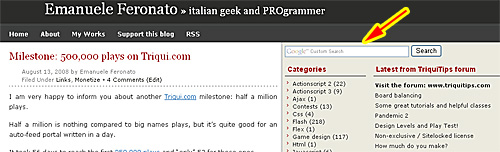
First, I am going to explain why to do it, then how to do it in the most professional way
Why?
There are five reasons why you should use AdSense for Search
Display results in the Google way. Almost all people are used to read Google results, making its way to display results the more effective and user friendly at the moment.
Use a real search engine. Google uses its secret formula to order results by relevancy, that works better than WP search that only lists posts ordered by data.
Extend the search to other sites. With WP search, you can only search within your blog. With Adsense, you can define a list of sites to search for the query.
This is very useful if you run multiple sites covering the same topic, like this blog, triqui.com and triquitips.com.
Monetize. Results page has sponsored ads that will help you to monetize the blog.
Feedback. You can look at the top queries and know what people are looking for in your blog. And improve it.
How?
In order to install AdSense for Search you will have to play a bit with WP and AdSense
WordPress - step 1
Log in your admin panel and create a new empty page called "Search Results" or something like it. Then go to the page and copy/paste its URL somewhere safe
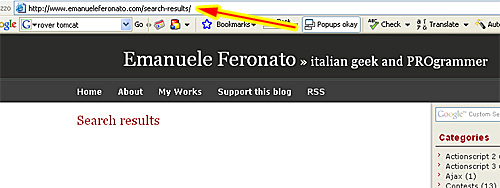
AdSense
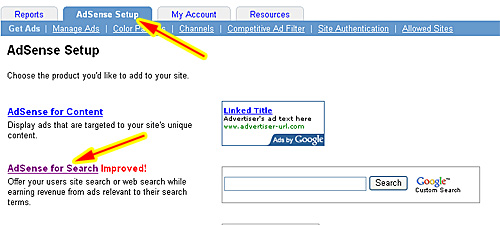
That's very easy... just log in you Adsense account and click on AdSense Setup then AdSense for Search
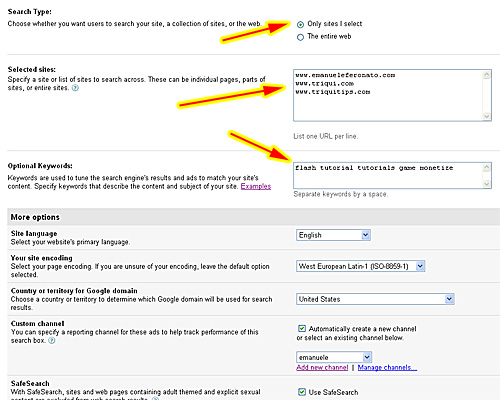
On next page, select Only sites I select on Search Type, write down the urls (one per line) of the sites you want to search across on Selected sites, fill Optional Keywords field with space-separated keywords that matches your site content.
Then choose your site language, enconding, Google domain to be used for search results, create a channel to track performances and mark Use SafeSearch (onless you have a xxx blog)
Now it' time to select the look and feel of the search box and its length
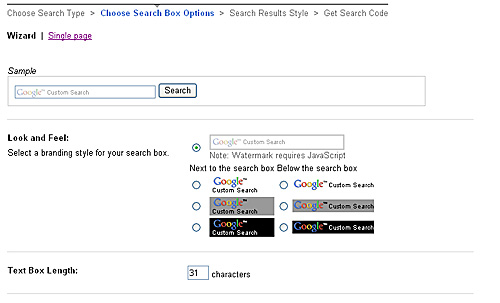
Finally, the most interesting part.
Select Open results within my own site and enter the URL of the results page you created before. Enter the width of results area according to the width of your main content div and for most templates select Top and Bottom as Ad location.
If you don't know the width of your main content div, you can find it in your style.css file inside youw theme directory usually in this way:
-
#contentleft {
-
/*background: #FFFFFF;*/
-
display: inline;
-
float: left;
-
width: 530px;
-
margin: 0px 0px 0px 0px;
-
padding: 0px 10px 0px 10px;
-
text-align:justify;
-
}
at line 5 I can find my main content div is 530.
Don't worry if you can't determine it: you can always change settings later until you have your search results fit in the page
Play with the palette if you want (but I recommend you to use the default one)
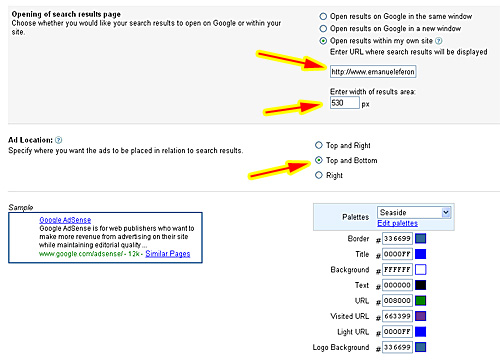
At this time name and save your search engine to get the code.
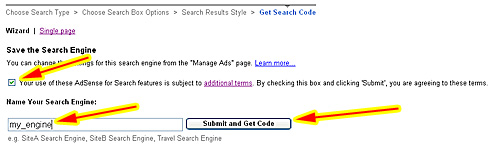
You will be given two codes, a Search Box Code that will look like this:
-
<form action="http://www.emanueleferonato.com/search-results/" id="cse-search-box">
-
<input type="hidden" name="cx" value="partner-pub-2062493463858889:up0qwg-5an7" />
-
<input type="hidden" name="cof" value="FORID:11" />
-
<input type="hidden" name="ie" value="ISO-8859-1" />
-
<input type="text" name="q" size="31" />
-
<input type="submit" name="sa" value="Search" />
-
</div>
-
</form>
-
<script type="text/javascript" src="http://www.google.com/coop/cse/brand?form=cse-search-box&lang=en"></script>
and a Search Result Code that will look like this
-
<div id="cse-search-results"></div>
-
<script type="text/javascript">
-
var googleSearchIframeName = "cse-search-results";
-
var googleSearchFormName = "cse-search-box";
-
var googleSearchFrameWidth = 530;
-
var googleSearchDomain = "www.google.com";
-
var googleSearchPath = "/cse";
-
</script>
-
<script type="text/javascript" src="http://www.google.com/afsonline/show_afs_search.js"></script>
Copy and paste them somewhere safe
WordPress - step 2
Edit your results page and paste the Search Result Code.
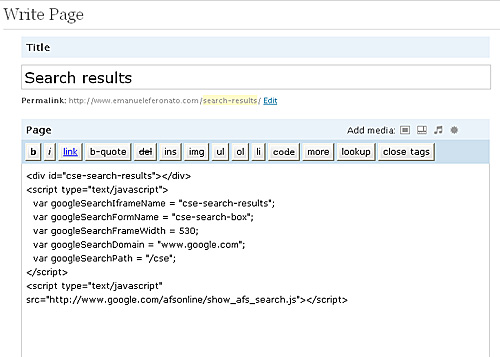
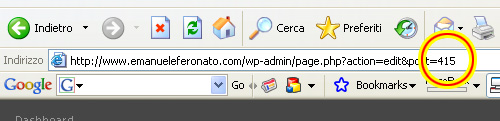
Also don't forget to save in a safe place the number of the post shown in the url , in my case 415.
Now it's time to insert the Search Box code in an HTML widget or directly into the sidebar.php file in your theme directory.
In my case I added it at the very top of sidebar.php file in this way:
-
<!-- begin main_sidebar -->
-
-
<div id = "mid_side">
-
-
<form action="http://www.emanueleferonato.com/search-results/" id="cse-search-box">
-
<div id = "cse">
-
<input type="hidden" name="cx" value="partner-pub-2062493463858889:x253il-vejs" />
-
<input type="hidden" name="cof" value="FORID:11" />
-
<input type="hidden" name="ie" value="ISO-8859-1" />
-
<input type="text" name="q" size="35" />
-
<input type="submit" name="sa" value="Search" />
-
</div>
-
</form>
-
<script type="text/javascript" src="http://www.google.com/coop/cse/brand?form=cse-search-box&lang=en"></script>
-
-
-
<!-- begin l_sidebar -->
-
-
<div id="l_sidebar">
-
-
<ul id="l_sidebarwidgeted">
-
... etcetera
if you look at lines 5 and 6 both the form and the div have an id, for a css finetuning of their look.
in my style.css file you can find
-
#cse-search-box{margin:0px}
-
-
#cse{padding:5px 0px 0px 5px}
WordPress - final touch
Now the only issue is that if you have a page listing, it will include your Search Results page too.
But in my case, it's not on my header.
Why?
It's just a matter of how do you call wp_list_pages function.
wp_list_pages() displays a list of WordPress Pages as links. It is often used to customize the Sidebar or Header, but may be used in other Templates as well.
Read the full documentation at Template Tags/wp list pages WP Codex.
You can exclude pages from the list just adding the exclude parameter with the number of the page to exclude.
How can you find that number? That's the number you saved before from your page URL.
And that's all... happy searching.
Tell me what do you think about this post. I'll write better and better entries.
You will be pleasantly surprised by WordPress Themes provided by Template Monster. All of them are of professional design and high quality.
9 Responses to “How (and why) to include AdSense for Search in your WP blog”
Leave a Reply
Trackbacks
-
Introduction to Michael James Williams's Blog | Michael James Williams on
September 12th, 2008 6:44 pm
[...] customised WordPress with the Journalist theme (thanks, Lucian E. Marin), a bunch of plugins, and some tips from Emanuele Feronato (thanks, [...]

(10 votes, average: 4.1 out of 5)
nice… giving you a few 0.0001 cents by clicking ads…
Haha, just did this last week, it seems to have helped :)
will try this soon
Thank you for the detailed instructions. I had no problems creating the search results with wordpress.
My Search Box code comes out of Google looking a lot different than yours (and causes a huge error when I cut/paste it into my left sidebar). Otherwise, everything else went exactly as you showed. Any help would be greatly appreciated as I cannot seem to figure out what I’m doing wrong.
This is what I get;
@import url(http://www.google.com/cse/api/branding.css);
Custom Search
Great tip, thanks for sharing it with us. But I see a problem with this for people using Adsense on the sidebar. According to googles terms I think its not allowd for the search page to have any other adsense ad other than a txt unit.
If anyone know a way to get rid of Adsense banner from the sidebar on the search pages , plz add em here
Figured out how to do it :) , it can be done using is_page() more info : http://codex.wordpress.org/Conditional_Tags#A_PAGE_Page
Thank you for this, Emanuele, it’s really useful!